
KEEP THE IMPORTANT THINGS CLOSE.
Features
Pin it. See through it. Make it yours.
Simple tools for keeping your reference close.
The window you need.
Right where you left it.
Pin one selected window above your other windows. Keep your reference visible while you work in another app.

Click the pinned window once to activate it, then click again to interact. To move it, press again after activation and drag.
Keep it on top.
See what’s underneath.
While the pinned window is inactive, scroll over it to adjust opacity. It becomes opaque again when you activate it.

From the menu bar.
Or your keyboard.
Activate the target window and click the menu bar pin, or use the default shortcut. The right-click window picker shows a thumbnail so you can check your selection.
Control + Command + T. Change it in Settings.
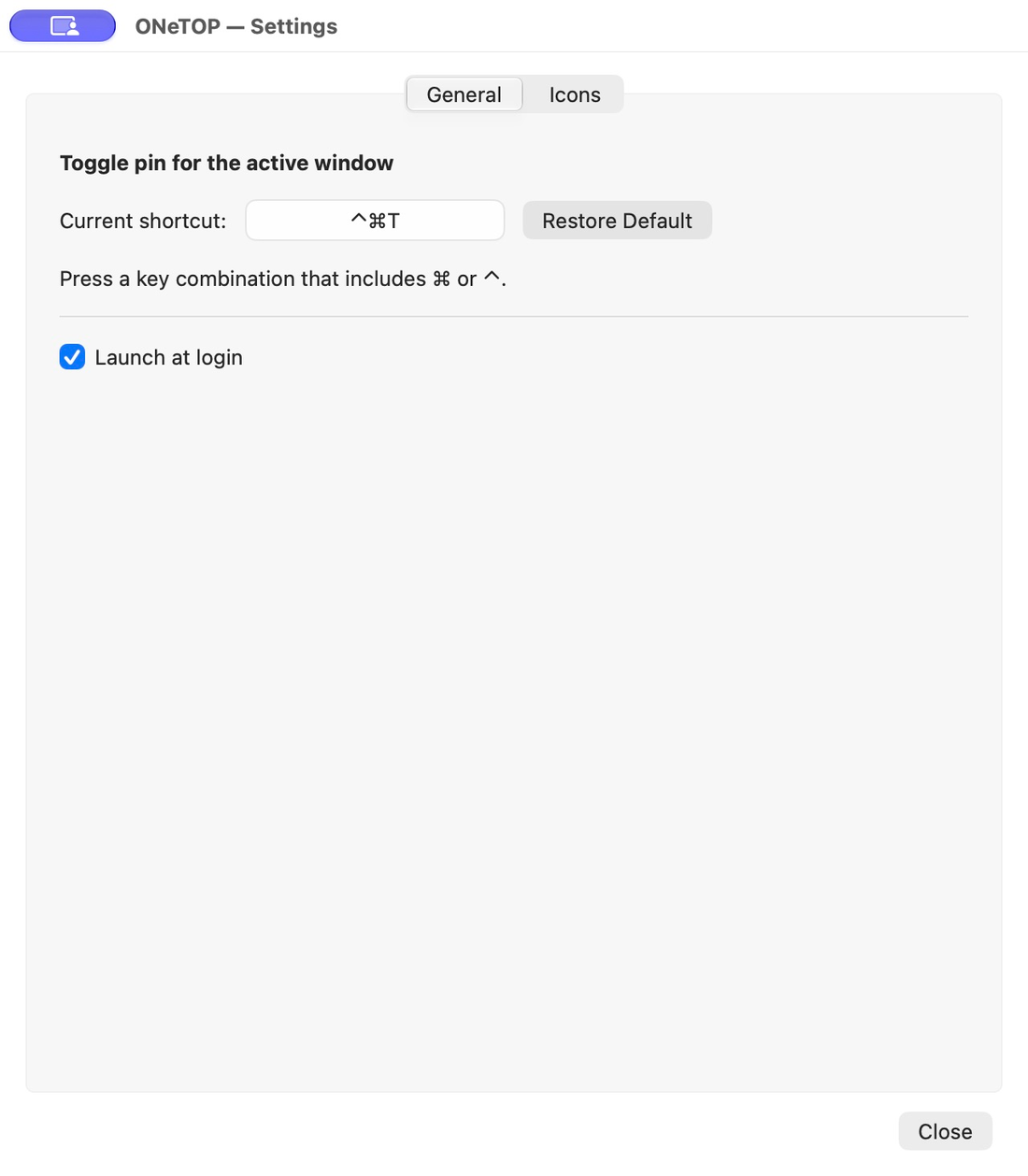
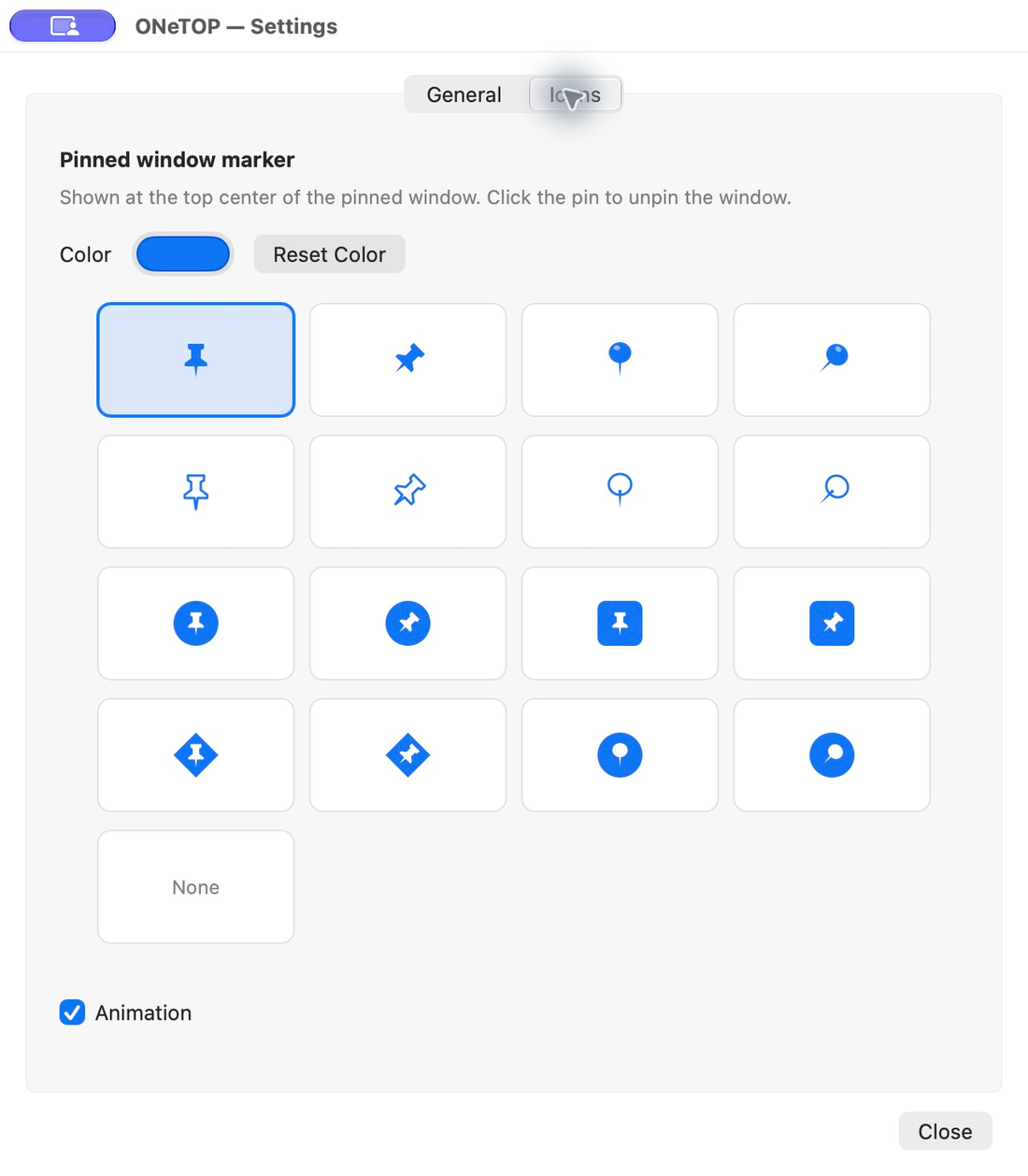
Your favorite shape.
Your kind of color.
Pick one of 16 pin shapes for the marker at the top center of your window. Choose any color, or hide the marker altogether.
A small insertion animation marks pinning, and a removal animation marks unpinning. Both can be turned off in Settings.
A few things
to know first.
Requires an Apple silicon Mac and macOS 15.2 or later. Screen Recording permission lets ONeTOP adjust window transparency and keep your selected window on top. One window can be pinned at a time.
Read interaction and display limitationsKeep your next task in good company.
Start with the setup guide and system requirements.